
How to add a new shop
What has to be considered technically
Since we want to build up a big worldwide BIOMOTO directory it is important to create a new shop page only the way described below.
Step by step guide
1. Contact us for creating a mail address
The shop will need an e-mail address. We are going to set this up and it will be something like "city@biomoto.xy". We will send you the login data for the mailbox afterwards.
2. If necessary create a new user
If you as an administrator want to manage the shop page you can skip this step.
If the shop page shall be administrated by the shop owner and this is not you, you have to create a new user: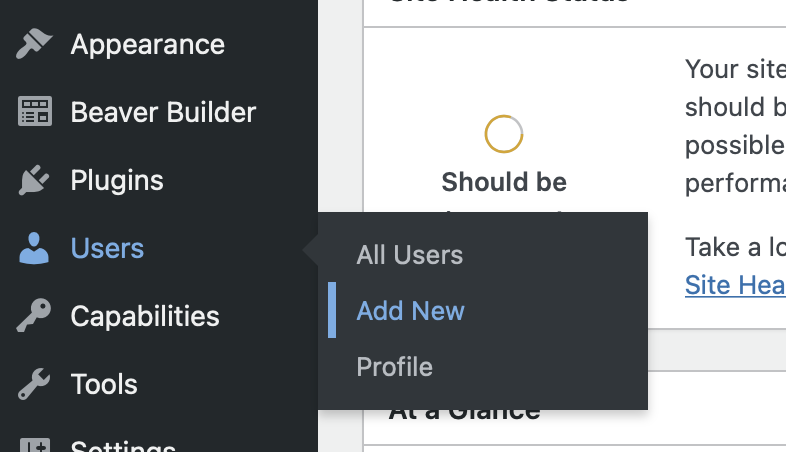
Get down to the "Add new User" paragraph and fill out the form.
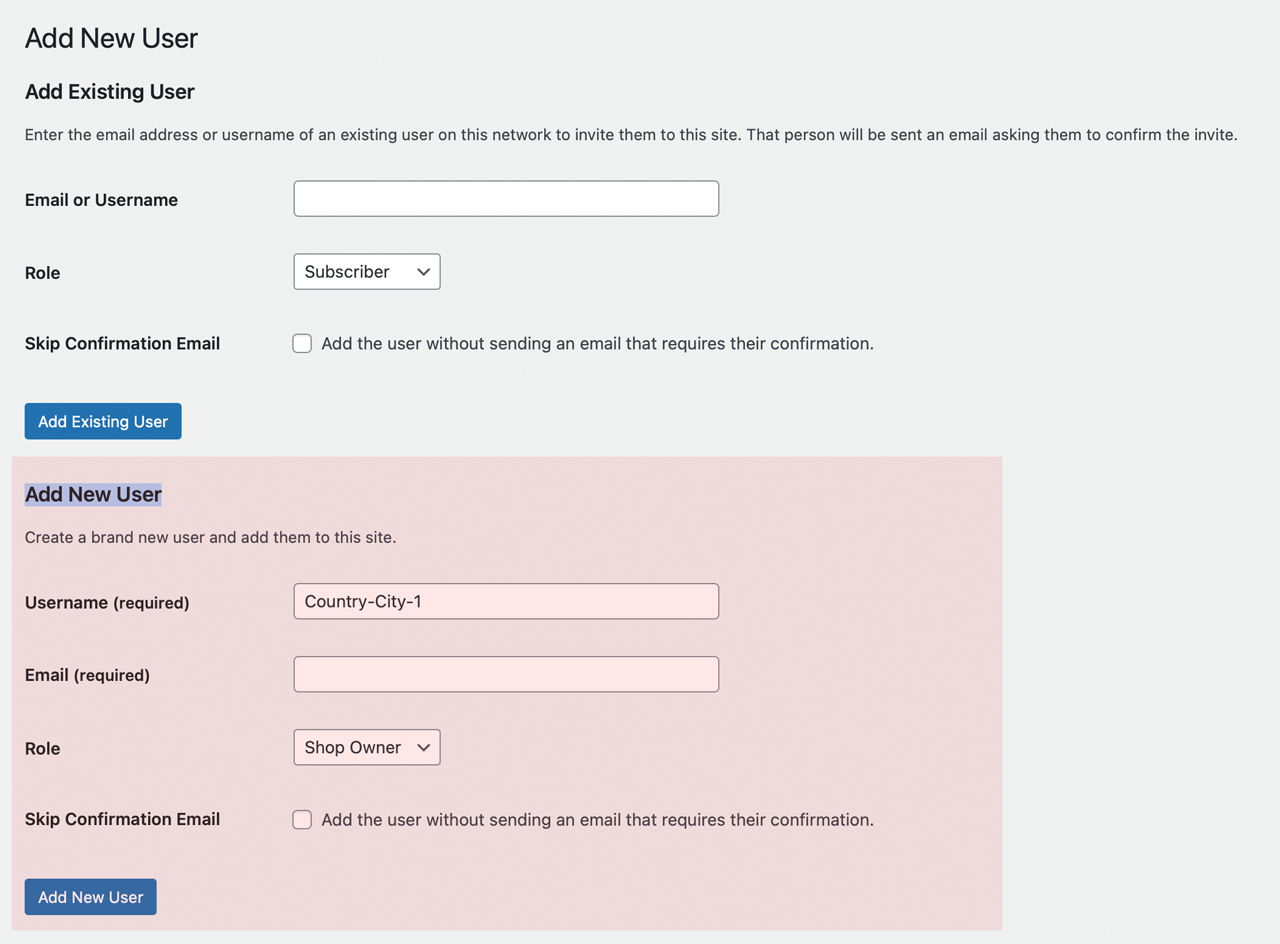
Please use this uniform schema: country-city-1
If there are more shops in one city just increase the number at the end.
Example: The second shop in Tokyo would get the username:
japan-tokyo-2
Our system will send an email to the specified email address. After clicking on the confirmation link in the mail you can set a password and the user is registered to the system.
If you don't want to send this mail please check the "Skip Confirmation Email" checkbox. You will have to set up the password manually by navigating to the "Users" -> "All Users" Menu, editing the new user and giving a new password by clicking on the "Set New Password" Button at the end of the page.
3. Create a new page with the name of the city where the shop is located
With our demo site there already comes a sample shop page called "Sample City". You can either edit this to your needs, just duplicate this page to use it as a template or create a whole new page.
You can hover over the "Sample City" entry and click "Edit" to directly edit the page. To duplicate the page please hover your mouse over the "Sample City" name and click on "Duplicate Page". There will be a new page where you can hover your mouse over it again and press "Edit". You will see a new menu similar to this:
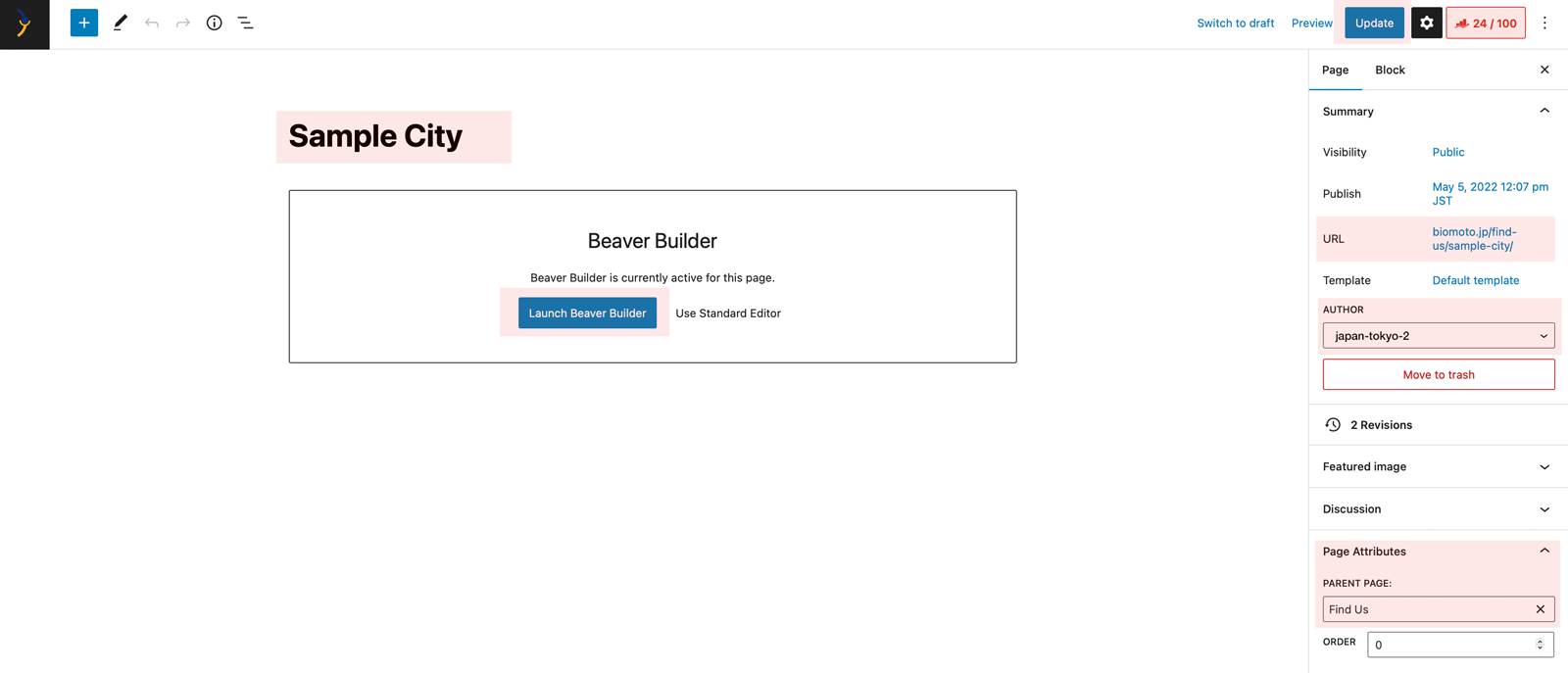
First edit the city name. If there are than one shops in one city please contact us since we have got different options to solve this.
As second make sure the URL changed to the city name, too.
Third edit the author. If you as an admin want to manage the page please set the author to your username. If it is the shop owner please change the author to the user created in step 2.
Last check if the parent page is set to "Find us" - or the corresponding translation in your language.
When everything is good please hit the "Update" Button. Afterwards you can open the Page Editor by clicking on the blue "Launch Beaver Builder".
No Comments